Showing posts with label CSI. Show all posts

Saturday, June 8, 2024

Creation of file in CSI utility Tool and Upload ZFB07 in SAP Module


CSI Utility Tool Working Procedure

In F&A there is bulk upload option for voucher postings, wherein excel or text file containing all voucher postings data can be uploaded at once. For easy generating of the bulk upload file a third party user friendly tool named CSI Utility Tool is there in which we can enter all receipts and payments of a particular facility.

The generated file can be uploaded using T code ZBF07 
  • Open CSI Utility tool and login
  • Select Transaction Date
  • Select Category
  • Select the Office name (we need to preconfigured our office and BO details)
  • Select Receipt/Payment
  • Select Head Name
  • Select Amount
  • Click Add
  • Similarly Add all transactions

  • Click on Export to text file & save the document locally
  • Login to SAP and invoke ZBF07 (Upload GL Transaction F-02)

In File name browse for the text file saved in your computer

Select Background and click on execute and the transactions will be posted to concerned profit centres.


Tuesday, May 14, 2024

PLI CSI GL Integration schedule on 21.05.2024

F. No. 46-3/2019-LI 
Government of India 
Ministry of Communications
Department of Posts
Directorate of Postal Life Insurance
Chanakyapuri PO Complex,
New Delhi-110021
Dated 14.05.2024
To
All the Heads of Circles
(except Tamil Nadu, Andhra Pradesh, Chhatisgarh and Karnataka Circle)

Subject: PLI CSI GL Integration - reg.

Respected Ma'am/Sir,
I am directed to convey that roll out for PLI-CSI GL Integration on PAN India basis is scheduled on 21st May, 2024.

In this regard, it is intimated that CEPT/IPPB Team will share the list of pending proposals on a day-to-day basis and circles should ensure 'Nil status regarding pending proposals before GL rollout. Moreover, all manual voucher postings may also be stopped by all post offices from 20th May, 2024 itself.

In view of above, it is requested to kindly issue necessary instructions to all concerned to follow the enclosed set of instructions and FAQ for successful implementation of PLI-GL Roll out on scheduled date.

This may kindly be treated as Most Urgent.

This has the approval of competent authority.

Encl.: As Above

(Sahabuddin Laskar) 
Accounts Officer (PLI)


PTM SUPER ID DISABLED | ENABLE ROLES FOR AUTHORIZED PERSON FOR ACCESSING PTM

SUPERUSER IDs for creating/modifying the schedules in PTM has been disabled with immediate effect. Hence, the field units to assign the respective roles shared above to the EMP IDs through RDA.


Sir/Madam,
With reference to the trail mail, The SUPERUSER IDs have been locked in PTM system based on the approval of the competent authority. Hence it is requested to kindly assign necessary PTM roles to concerned employee from RDA and check.
Role Assignments
YC:TMS SCHEDULE 
YS:DOP_COMMON_ROLE
ZS:TMS TRANSPORTATION_MGR_V2 
ZS:TM SCHEDULE

Thursday, May 9, 2024

CSI COD Front Ending Standard Operating Procedure

 Latest addition in Front Ending Billers:

 ZCOD_DUPLICATE tcode has been enhanced to identify duplicate articles from Paid and unpaid article list Biller ID wise
Latest Modifications:
1. Accounting document posted against Delivery office after DPMS EOD & COD cash collected from postman/Window Delivery/RICT delivery/BO returns will be processed directly (Pan India) for Payment. Hence Article can be paid soon after Delivery confirmation & COD cash collected from postman.

2. COD reports introduced for Delivery & RTS articles list based on Booking Date & Delivery Date.

3. ZART_UPLOAD restricted for the front ended biller & hence Booking Data cannot be created. Article can be delivered or returned only if the booking data is available in CSI.

4. No changes in Delivery operations & few modifications in Payment process: 
  • Payment due report (FBL5N).
  • Posting Payment (F-58).
  • Payment Details (ZFI_EPAY).

5. Payment of COD Collections made at Non-CSI Office (Including TNF) continues with existing process.

6. CEPT E-payment site/Parcelnet reports will not include the collections/payments of CSI Offices.

7. Any files related to delivery/payments for COD Customer to be generated at nodal Payment/Booking Office only. Hence no download currently possible at CEPT Epayment site for COD Customers. Legacy CODE mapping is also not required 

Table of Content:


Pre-requisite

SAP Role: “E-Payment”
Above role to be assigned to user by concerned divisional head for processing payment for COD Customer. The same role shall work for payment of COD Customer and Epay Billers


Processing Payment to COD Customer:
As a failsafe measure, user needs to check if any articles are available in Duplicate for Payment through Transaction ZCOD_DUPLICATES

  1. Enter Customer/Biller Id & Execute.
  2. In case any articles are available in Duplicate, the same will be listed along with Document numbers.
  3. Two additional fields “Payment Document No.” and “Payment Date” are added in the report, to identify the earlier payment document number and the payment date if any w.r.t duplicate article.
  4. Multiple documents already paid/open w.r.t duplicate article, will be displayed in the report.
  5. Irrespective of open/cleared items for an article, the Report will display the last three months articles data where double payment has happened.
  6. In case if any articles are found in Duplicate and pending for payment (Payment Doc & Date Null), take up the matter with the Collection/delivery office to reverse the duplicate DR and identify the cause for duplicate.
  7. When Duplicate entries are found with payment details, Payment Office has to take to get the refund of double payment and intimate Delivery Office about duplicate.
  8. For all duplicate liability Collection office has to raise CSI ticket with process followed for delivery for further analysis by CSI/CEPT DPMS Team. Details may be shared to CEPT DPMS Team id also.
  9. Execution of said Tcode is mandatory before checking Due report or processing payment.

Payment Due report


 T-Code: FBL5N
1. Click on “Get Variant”
2. Clear your User ID “Created By” Text field and Enter “SAP”.
3. Click on Execute

4. Double Click on “SAP&INET1”. This will enable Open Items in FBL5N main screen as shown below.
5. Enter Customer ID in Customer account.
6. Enter Current date so as to see Payment due as on date. Open Items are nothing but unpaid liabilities.
7. Type Layout as “/COD_DUE” as shown above in FBL5N screen “List Output” Layout. Then execute(F8)
 Note: Open Item Date can be older date and system display due list as on Entered Date (Even though amount is paid!!). However, the same cannot be paid if generated for older dates.
 8. Document type should always be DR only which is COD Liability Document Posted at Delivery Office profit centre. “/COD_DUE” Layout is prepared to generate DR Open Items only. Layout can also be selected in above screen by pressing “Cntrl+F9” if not selected in step 7 before execution of FBL5N.
9. Document Date is COD article Delivery Date; this can be sorted to know the date of Delivery “From & to” which is available as due for payment.
10. Amount with Credit entry(-) denotes amount payable to Biller. Assignment denotes Article number.
11. Delivery Office Profit centre is available to filter hence Payment possible based on Delivery office wise.
12. DR liability Document number for Processing Payment Document number wise.
13. Make sure Red Item which denotes Open as not cleared/paid or reversed.
14. Total Amount payable (- Credit) which can be paid through F-58.

Posting Payment

 T-Code: F-58
Process remains the same as clearing any other Liability Document and Drawing CQ
1. Payment Date.
2. Document Type should always be “DZ”. In case of wrong doc type, postings will happen however the same will not reflect in Daily account.
3. Amount for which CQ to be drawn. Amount as per FBL5N Payment Due report.
4. COD Customer ID for whom Payment is made/ CQ to be drawn.
5. Select Others, Click On “Process Open Items” Æ ‘Document Type”Æ Enter DR and Select Process Items again.(Only DR liability document to be processed!!!).
6. Confirm Assigned Amount (Due Amount) and Entered Amount, Post the Document to draw the CQ.

Process to handle 999 line item issue while making payment and reduce number of Payment documents:

• Export Due report to Excel, sort profit centre in ascending order.
• Identify 990th profit centre number in the list(Using remove duplicates in separate
sheet).
• Note down total amount payable for 990 profit centre collections.
• Process only those profit centre liabilities as in point 5-> Others-> Profit
centre(From & To).

Payment Details

 T-Code: ZFI_EPAY


  • Payment Office:
  • Payment Offices can generate Report based on Biller ID, Paid Document Number & Paid Date
  • Executing report with above selection will display article details for which Payment is made.

  • Click on Net Payable Header and Summation symbol to obtain Total amount Paid.
  • Layout can be saved with required columns & Summation for required amount fields keeping rest of the columns hidden. Layout may be saved as User specific so as the same shall not be available / visible for other users.


List of Payments made to the Biller

 T-code: FBL5N
1. Enable “SAP&INET1” as shown in Payment Due report, Cleared Item to be selected to See Paid Documents.

2. “Open Item” in SAP is nothing but due amount and “cleared item” is nothing but Paid item & Clearing document is the payment document. Clearing date in Payment Date.
3. Enter Customer ID, Clearing Date & Execute (F8) to generate list of Documents Paid/cleared/adjusted along with its Payment/cleared details.
4. Below Document type can be generated.
5. Click on Type > Filter, To filter Document Types.

Click F4 to see list Of Document Types available for selection. Select DZ to see Payment Documents Only.
Select “Sub Total” and “Collapse All” To see Payment Documents & Amount, Document Date denotes Payment/Transaction date as selected in F-58.Further by clicking on Overview or navigating to Tcode FB03, more details of the Payment Document viz Debit & credit G/L, Payment Office Profit centre & Created By user can be seen.
Select DR & Clearing Doc to generate List of COD articles which is paid against any Payment Doc number which is also available in “ZFI_EPAY” report.

Payment of Non-CSI COD collections through Legacy Chennal

Existing process may be continued to pay Non-CSI collections
 T-Code: ZFI_EPAYMENT

  • Enter Payment Office Profit centre and COD Biller ID, Select COD Biller. 
  • Detailed or Summary report can be selected & executed to view Actual Amount to be paid.
  • If Data available to payment, click on Post Document which displays F-58 Screen. Enter relevant Details and process Open Items.
  • This transaction displays collection details received from CEPT (i.e. Non-CSI & TNF COD Collections).
  • Post the document to draw CQ.
  • Relevant reports can be downloaded from ZFI_EREPORT.
  • Separate CQ will be drawn for Non- CSI collections & CSI Collections.

COD Reports:

  • Status of Articles Delivered and Returned can be obtained based on Customer ID: Booking Dates or Delivery Dates.
  • Navigate to DOP Main Screen-> DPMS Transactions & Reports -> COD Customer Report

  • This report shall work only for Articles which are Delivered either as COD or RTS Facility ID denotes Delivery Office ID.
  • For RTS article, Delivery Facility ID is RTS Office from which the returned COD articles are delivered to the COD customer.
  • Normal article & RTS Article report shall work only for articles delivered through DPMS.

How to take printout of advance deposit receipts

 Advance Deposit Can be done in SAP Module TCode : ZADVANCE_DEPOSIT

  • Enter Customer ID, Contract Number , Item (Always 00010) & Save the Transaction (Cntrl + S) to recharge. Document number will be created upon Save. Balance can be seen instantly in POS.

PRINT RECEIPT FOR ADVANCE CUSTOMER DEPOSIT

Advance deposit receipt: Tcode : ZADVANCE_PRINT

Wednesday, May 8, 2024

How to check dynamic QR Transaction in SAP


 Dynamic QR Transactions Report in MIS

Reports for monitoring digital transactions performed in Branch Offices, Sub Offices, and  Head Offices are accessible on the MIS Dashboard under the category of Digital Transactions via Mobile Applications. The dashboard can be accessed at the URL:


These reports can be accessed by the Directorate, Circles, Regions, Divisions, Head Offices and Sub Offices, by logging into the MIS Website using their credentials

ALTERNATE WAY TO TAKE REPORT IN FAGLL03

Invoke SAP T Code : FAGLL03

GL CODE : 4878201760
Digital Payments-UPI Payments at POS

PRESS CTRL+F1 or Click on Custom Selection option
Click on Execute or Press F6


Franking related reports in SAP - CSI


System Franking Report in CSI

License Request Report - ZMO_FKG_LIC_REQ

List of franking license - ZMO_FKG_LICENSES

License Usage Report - ZMO_FKG_USAGE

Credit/Recharge Report ZMO_FKG_LIC_RECHARGE

Franking ZMO_FKG_REBATE

FM Connection status Report ZMO_FKG_CONN_STS

FM Usage Status Report ZMO_FKG_USG_STS

FM Refund status report ZMO_FKG_REFUND

FM National Credit Report ZMO_FKG_NOTIONAL

SOM & USG Comparison Report ZMO_FKG_SOM_USG_CMP

Tuesday, May 7, 2024

SAP Working Status on 08/05/2024


SAP Emergency downtime was announced for urgent maintenance on 07/05/2024. Now the ECP is released for production and SAP is working normally @0700AM On 08/05/2024

Please check at


SAP DIRECT URL FOR ECP

CSI Reference Book by Siva Kabeer

Click below link to download


Monday, May 6, 2024

SAP - Customer Relationship Management || India Post Official Complaint Dealing Portal

 SAP - Customer Relationship Management || India Post Official Complaint Dealing Portal

Direct URL for CRM Portal in SAP Module which is only accessible through Sify Network


SAP-CRM

(System,Applications and Products-Customer Relationship Management)
1. Double Click SAP Logon Icon from Desktop
2. Double Click on CRP (Full Form: Capacity Requirements Planning)
3. Enter User : Employee ID
4. Enter Password : Enter Your Password(SAP-ECP)
5. Enter
6. We can see the home page of CRP “ SAP Easy Access – User menu for Yourname
7. Double Click Start the WebClient UI (Left Side – Under User Menu for Yourname ->First Option“)
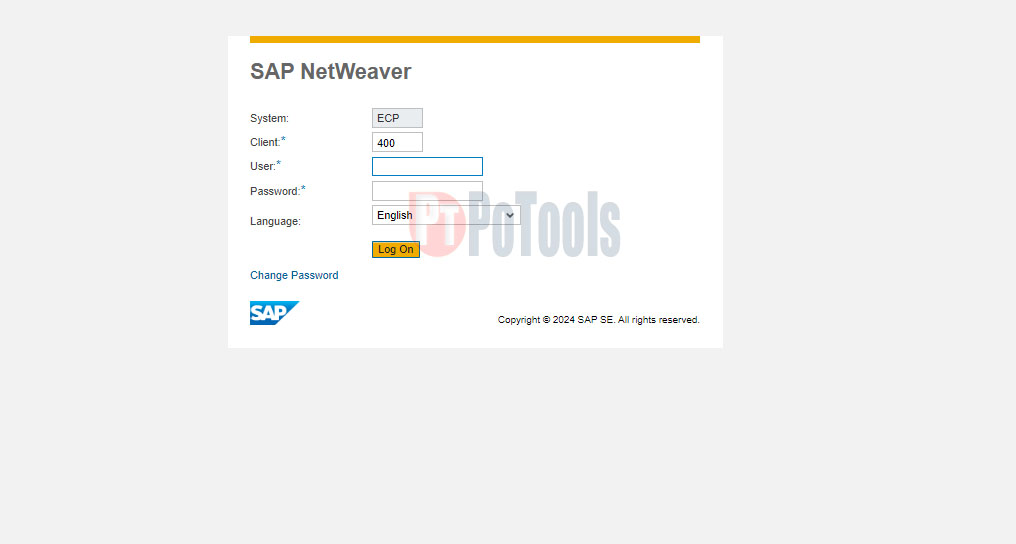
8. A site will be opened “ SAP NetWeaver”. The below URL can be access through the following direct link which is provide in the starting of this page

9. Enter User : Your Employee ID
10. Password : Enter Your password
11. Click on Log On (In Some cases Password Change screen will be came, if so please enter old
Password,New Password,Confirm New Password-> OK)
12. We can see CRM Home Page.(Search Complaint Page)


13. For Register New Complaint Please Click Log Complaint (Left- Top)
14. Select Category as Mail
(Financial – for SB cases, Insurance –For PLI/RPLI,Others-Ordinary Letters, Misbehaviour of
Staff etc)
15. Service : Select the option as per complaint Eg Registered Letters
16. Type : Select the option as per complaint Eg Non Delivery of Articles
17. Enter Article Number in Article ID Field (Right Side)
18. Enter Key

19. Article details will be filled from Database. Also Article Status: Article Present Status (Delivered /Not Delivered /taken out Delivery etc) .If the article Status is Delivered then TYPE(Third Text Box from the top – Previously selected) should not be “Non Delivery of Articles” or “Others”
20. Enter Complaint Description (Right Side)
21. Enter Correct Mobile Number and email Address in Senders Address Part.
22. Finally Click on Register Button
23. We can see Success Message in Top-Left Side - “Complaint ID Number 2000xxxxxxx Successfully Created.”
24. Mail regarding the Complaint with Complaint ID will be sent to
1. Customer as Acknowledgement

2. Destination office as Intimation
All the RL-Ack letters, while registering complaints - Some Issues are there in Non receipt of Acknowledgement cases.
After entering Tracking Number, in Service(Second from top) Field -> Only Registered Letter Option will be available. So we can’t select “Non Receipt of Ack Cards/Proof of Delivery “ option In Type field.
This is one of the major errors in CSI. In CSI POS booking of RL-AD letters, there is no Acknowledgement details in MPCM Sticker and IPVS Despatch List: These details from POS have been fetched to CRM . Hence the issue.)

Temporary Solution

• Select Type as Delay in Delivery of Articles
• Register Complaint by clicking Register: Note the Complaint Number.
• Click Search Complaint (Left Side)
• Enter the Complaint Number like Complaint ID as Enter noted Complaint ID here
• Click Search
• We can see the details of the complaint in Result List(Bottom)
• Click on Complaint ID ( Eg 20000xxxxx) We can see entire details of the complaint.
• Click on Edit (Top)
• Change Service as Registered Letter with Acknowledgement (Registered Letter ➔ Registered Letter with Acknowledgement)
• Select Type : Non Receipt of Ack Cards/Proof of Delivery
• Click on Save (Left-Top)
• Now the Case will be solved


SAP - Customer Relationship Management - India Post Complaint Management| SOP


 Tag:
SOP for CRM Portal in SAP | SAP SOP FOR CRM | Standard Operating Procedure for CRM Portal | Complaints portal in India Post | India Post Customer Complaint Portal | CRM Portal

Sunday, May 5, 2024

Assigned TCode for Postal Assistant Head Post Office Role


TCodeDESCRIPTION
F-02Enter G/L Account Posting
F-28Post Incoming Payments
F-32Clear Customer
F-39Clear Customer Down Payment
F.01ABAP Report: Financial Statements
F.13Automatic Clearing without Currency
F110Parameters for Automatic Payment
F150Dunning Run
FAGLB03Display Balances
FAGLF101Sorted List/Regrouping
FAGLL03G/L Account Line Items (New)
FB00Accounting Editing Options
FB01Post Document
FB02Change Document
FB03Display Document
FB50G/L Acct Pstg: Single Screen Trans.
FB65Enter Incoming Credit Memos
FB70Enter Outgoing Invoices
FBD1Enter Recurring Entry
FBD2Change Recurring Entry
FBD3Display Recurring Entry
FBL1NVendor Line Items
FBL3NG/L Account Line Items
FBL5NCustomer Line Items
FBV0Post Parked Document
FBV2Change Parked Document
FBV3Display Parked Document
FBVBPost Parked Document
FBZ0Display/Edit Payment Proposal
FCHNCheck Register
FD10NCustomer Balance Display
FK10NVendor Balance Display
FV50Park G/L Account Items
FV53Display Parked G/L Account Document
SHD0Transaction and Screen Variants
SMENSession Manager Menu Tree Display
SP01Output Controller
SU53Evaluate Authorization Check
S_ALR_87012078Due Date Analysis for Open Items
S_ALR_87012079Transaction Figures: Account Balance
S_ALR_87012082Vendor Balances in Local Currency
S_ALR_87012084Open Items: Vendor Due Date Forecast
S_ALR_87012168Due Date Analysis for Open Items
S_ALR_87012172Customer Balances in Local Currency
S_ALR_87012175Open Items: Customer Due Date Forec.
S_ALR_87012177Customer Payment History
S_ALR_87012178Customer Open Item Analysis(Overdue)
S_ALR_87012199Open Down Payments
S_ALR_87012271Cash Flow (Direct Method)
S_ALR_87013611Cost Centers: Actual/Plan/Variance
S_P99_41000099Payment List
S_PL0_86000028Fin. Statements: Act/Act Comparison
S_PL0_86000030G/L Account - Balances
S_PL0_86000031Transaction Figures: Account Balance
ZBF07Upload GL Transaction F-02
ZF110Cheque request
ZFA_MISASSETFA: MIS Asset Details
ZFBL3Nzfbl3n
ZFDAILYFA: Profit Center wise Daily Transac
ZFFV50Profit Center Posting
ZFIFI: Transaction Cockpit
ZFI_EMDTender Details
ZFI_EMD_CUSTFI: Tcode for Customer EMD
ZFI_FPOFA: FPO Report
ZFI_IPOREVIPO Transfer
ZFI_IQRENTIQ Rent Recipt
ZFI_LIAB_REPORTtcode for dop liability report
ZFI_MOFORFEITFi: Report for Forfeited MO
ZFI_POS_BALPOS Cash Balance Check
ZFI_RECEIPTFI: Receipt Scroll
ZFI_RECONFI: Tcode for ZR_F_BANK_SCHEDULES
ZFI_SCHEDULESFI: Tcode for ZRFI_BANK_SCHEDULE
ZFI_UNBLOCKFI: Unblock Biller Transactions
ZFR01Statement of Union Government
ZFR02FI: Report for SCT Corrections
ZFR_DAY_NEWtrnsn code for FR DAYcash and cheque
ZHF_ROLLHF Roll
ZLIQFFI: Liquidity Forecast Report
ZMO_DISPMoney Order Report
ZNPS_EMOReport for nps refund emo
ZOSOMGenerate OS and OM file: NPS
ZPAY_CCCash and Check Postings
ZPFF67FI: Tcode to Recon from File
ZPLPFI: PLI Policy Payment Status Report
ZRFBL3NDaily cash ledger report
ZRFR_DAY_NEWDaily balance report for Cash